 Deutsch
  España
  Francais
  Polish
  Russian
  Čeština
  Greek
Greek  Lithuania
  Romanian
  Arabic
  Português
  Indonesian
  Croatian
  Serbia
  Farsi
Farsi  Hebrew
  Mongolian
  Bulgarian
  Georgia
  Azerbaijani
  Thai
Thai  Turkish
  Magyar
 How to add another item to an already existing title?


In the Library module, select the "Books" tab in the top menu.
In the list of titles, click "Items" next to the desired title.
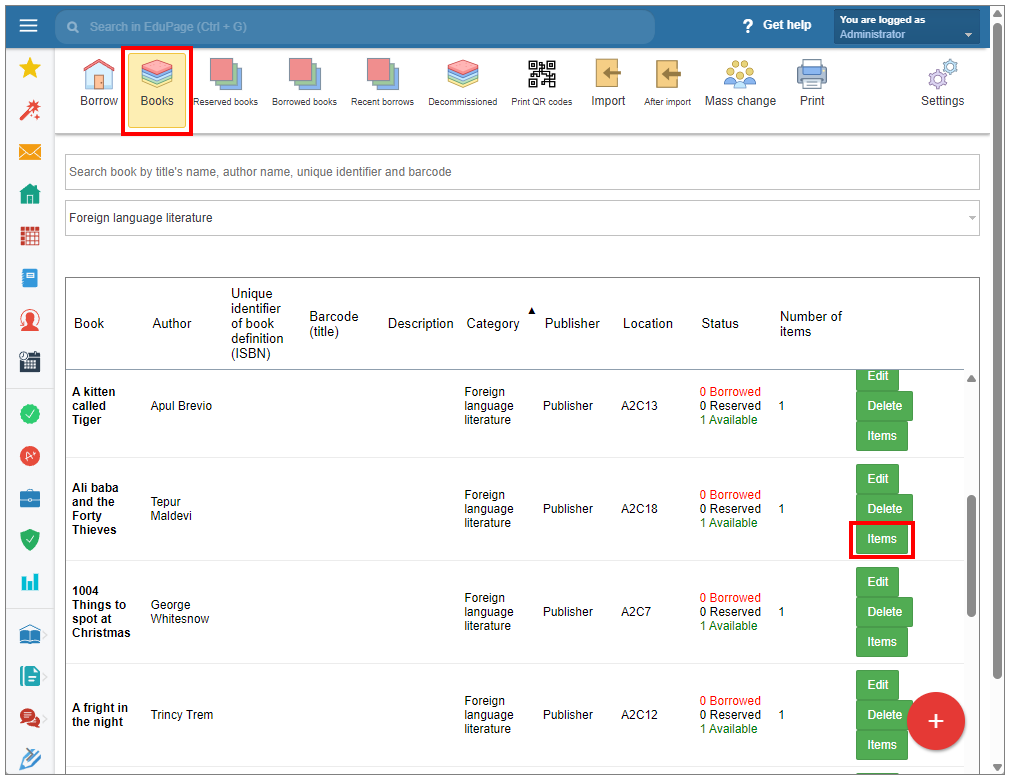
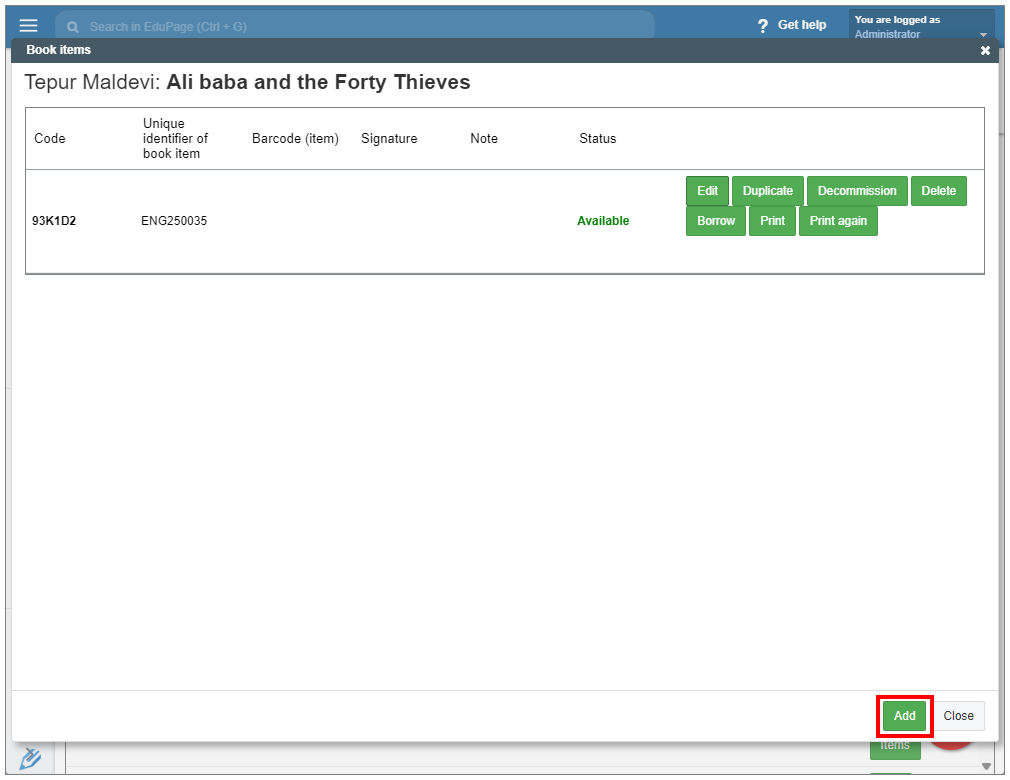
An item window will appear. If you wish to add a new item with no specifications filled in, click “Add” at the bottom of the window.
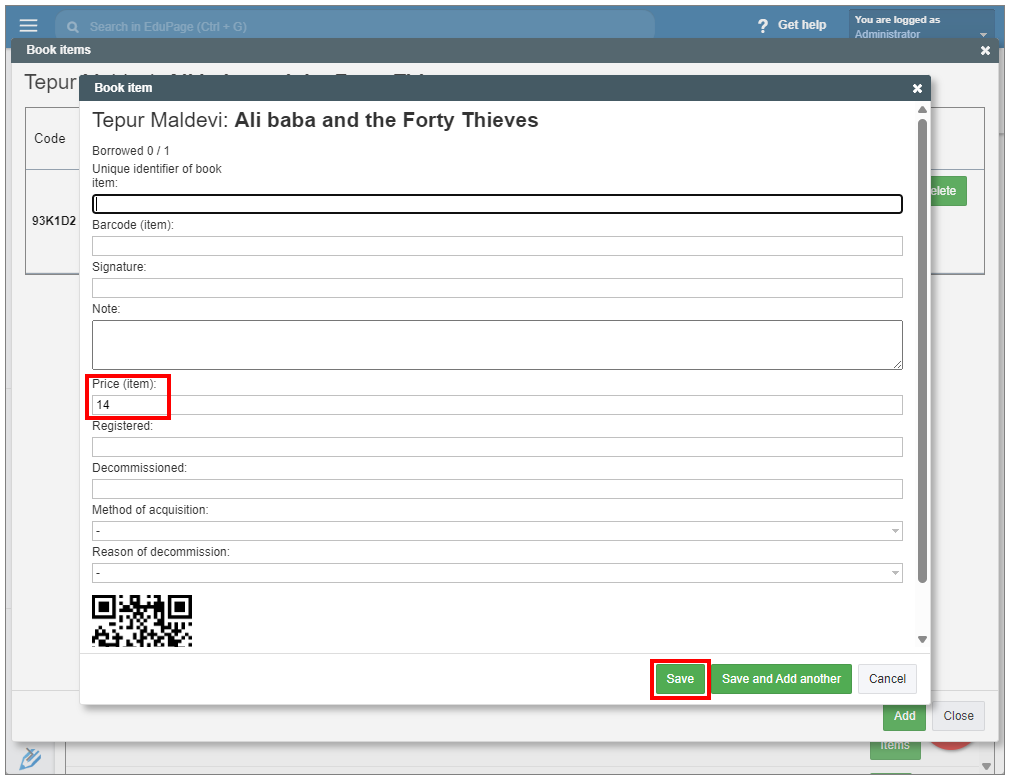
An edit item window will open, with no specifications entered yet. Only the price field is filled, as it is linked to the price of the title. Enter the desired specifications. You can either change the item's price. Once you edit the item's price, the link to the titel's price will be removed. Confirm “Save”.
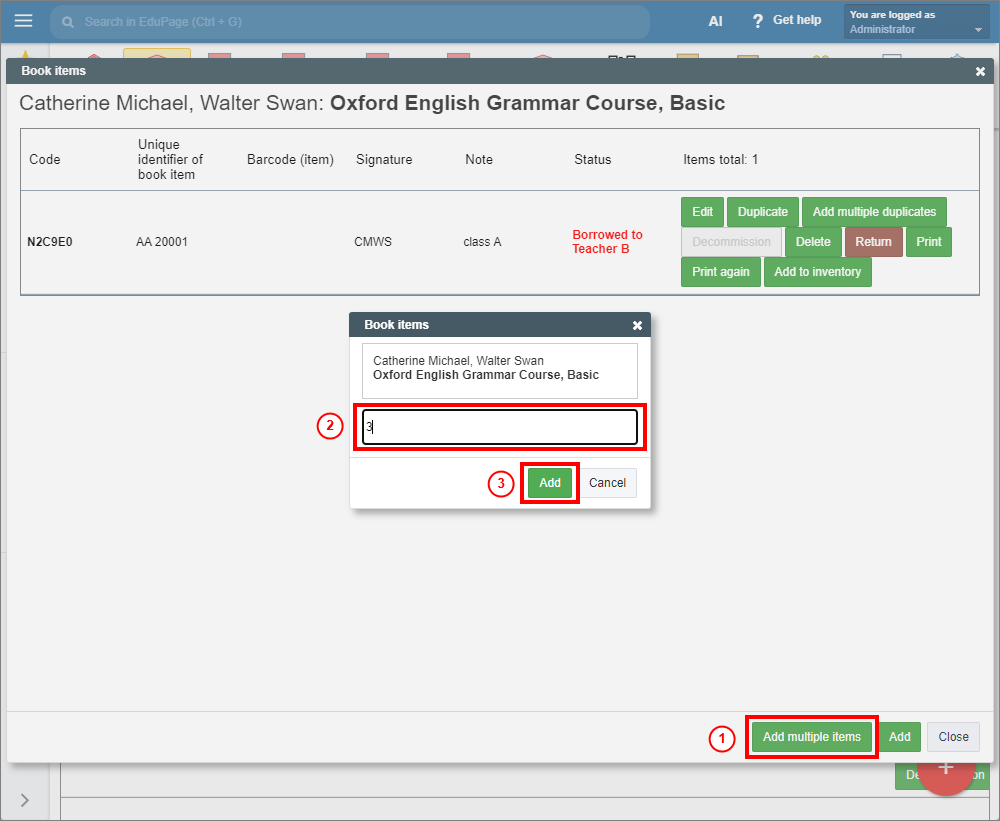
In the Textbook Storage you can add multiple copies at once. If you want to add copies without entering specifications, choose “Add multiple items” at the bottom of the screen. Enter the number of copies and click “Add” to confirm.
In the Library module, if an item with the desired specifications exists, click the "Duplicate" button in its row.
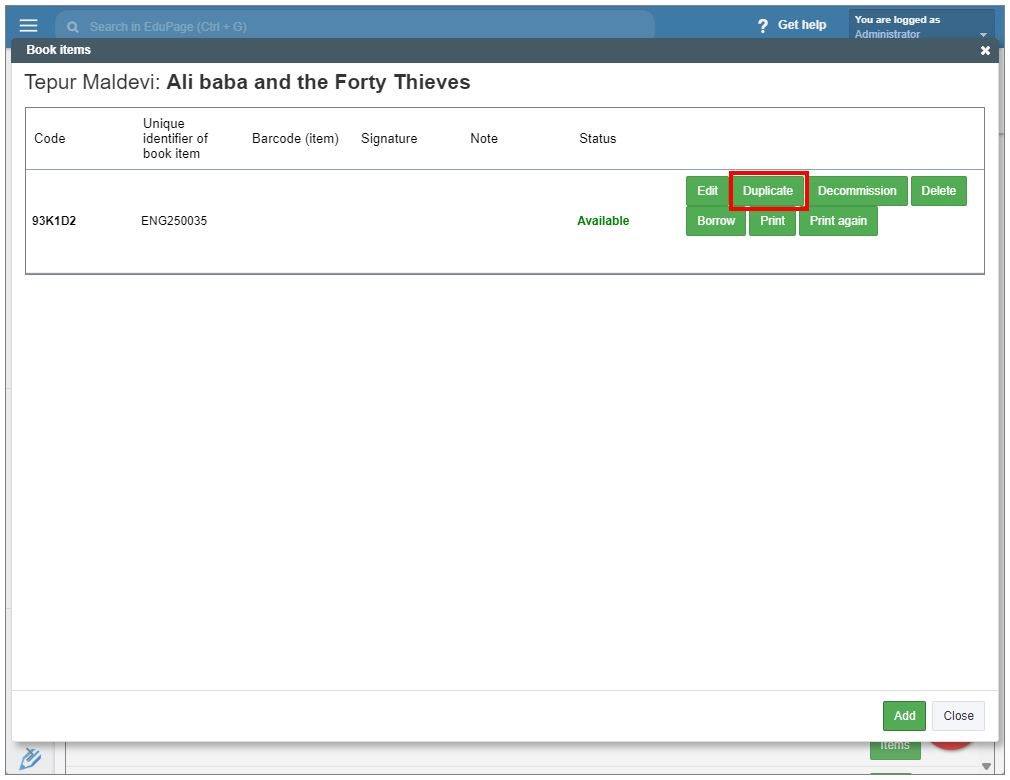
An item window will appear, with the copied specifications. To avoid confusion, change the unique identifier number of the new item. Review and edit duplicated specifications as needed.
To create another copy of the item, select “Save and Add another”.
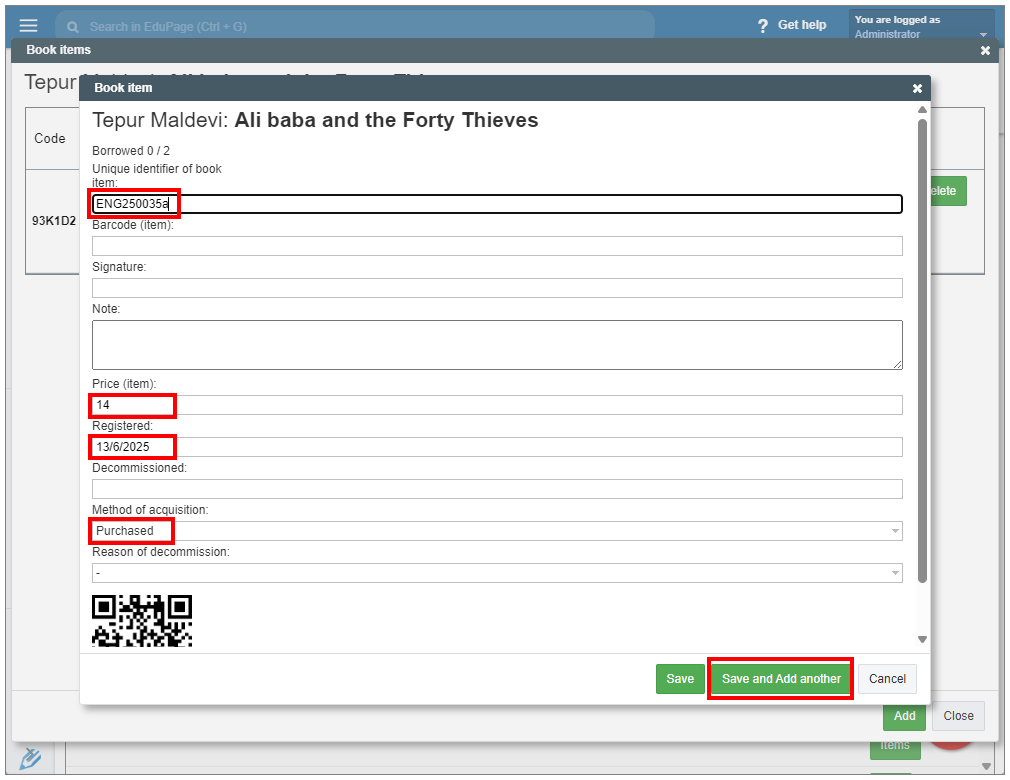
Otherwise, confirm “Save”.
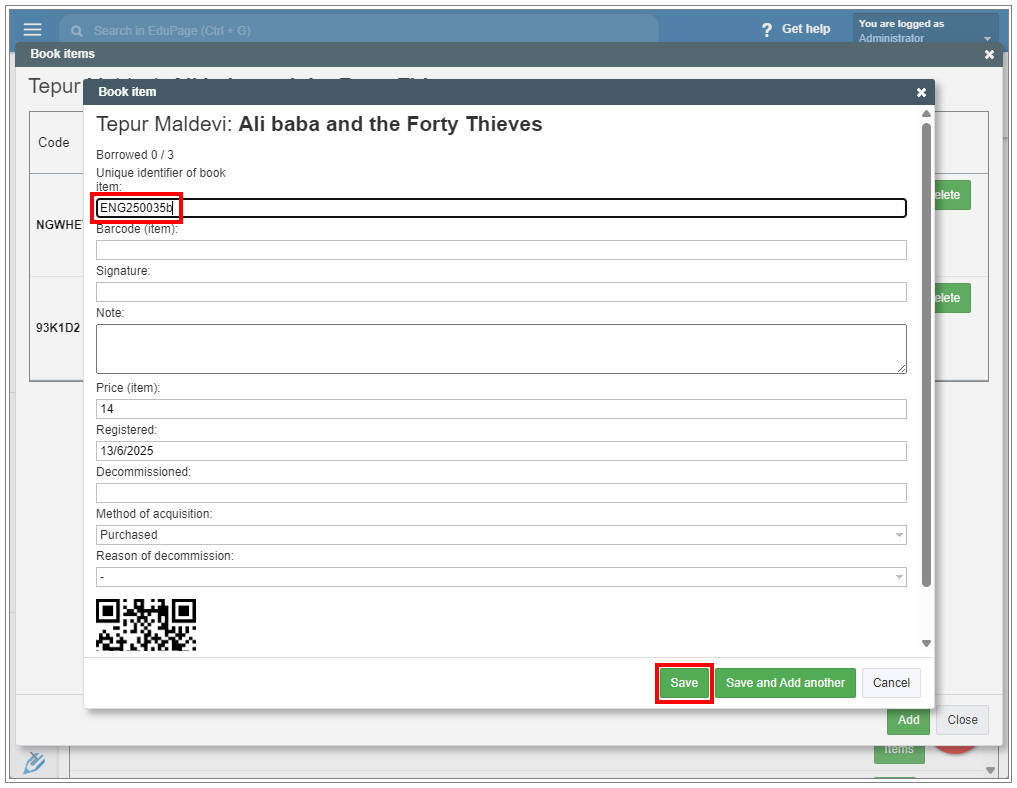
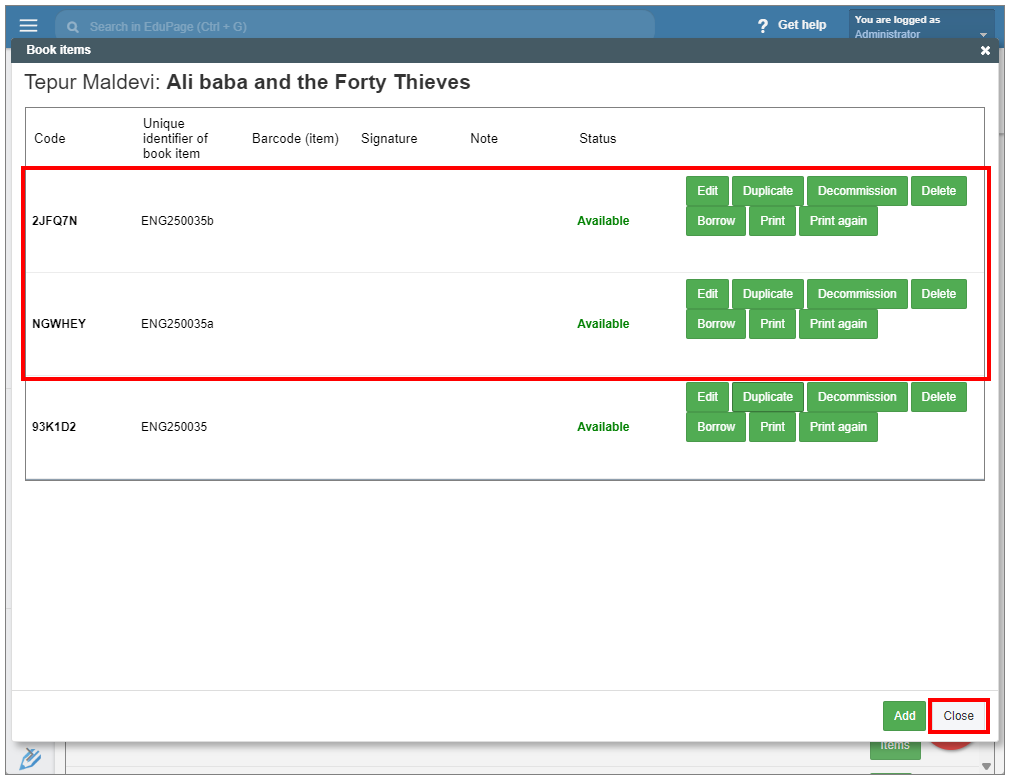
The items are now added to the title record.
In the Textbook storage module, to add multiple duplicates (copies with entered specifications) at once, select “Add multiple duplicates” in the row of the desired item.
In the “Book items” window, enter the number of copies and click “Add” to confirm.
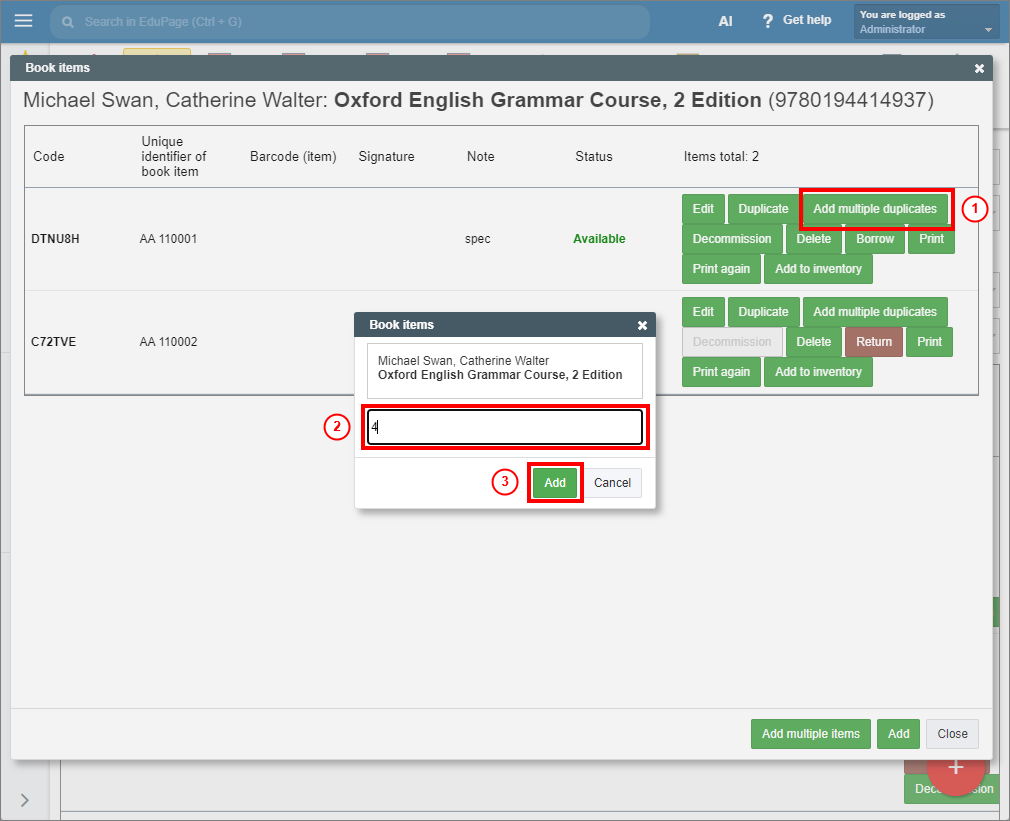
The book items have been added.
Click “Close” to exit the main Book Items window.
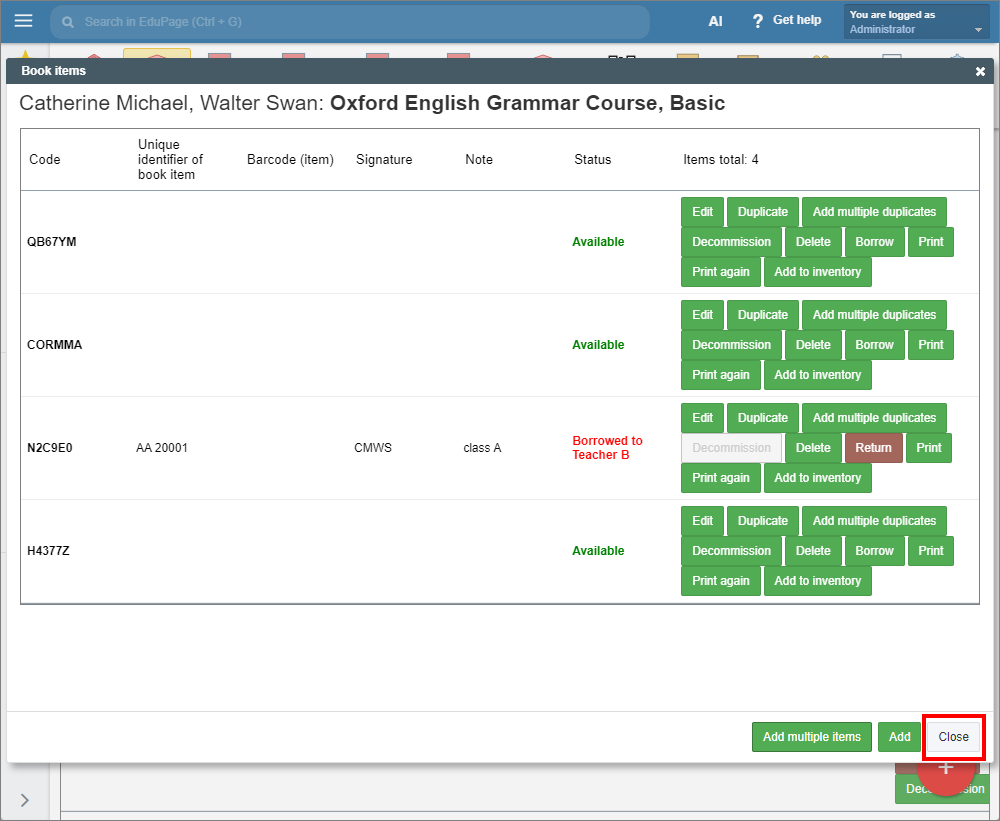
Please note: The unique identifier for each of the items is not automatically generated by the application and should be entered manually, if necessary.
See also:
How to add a new book title to the Library/Textbook storage module
How to print QR codes for added books?